This report synthesizes official documentation and high-signal community evidence to recommend optimal in-game settings for both casual and competitive play, plus a “pro” profile tuned for the most demanding online environments (Ranked, tournaments, high difficulty). The analysis emphasizes the settings that most directly affect: (1) pitch recognition and timing, (2) input precision, (3) error rate (randomness vs skill expression), and (4) online stability/latency tolerance.
Key conclusions:
Hitting: Competitive players overwhelmingly benefit from Zone (or the new Fixed Zone) paired with a Strike Zone / Strike Zone High hitting camera and Hitting Depth of Field ON for clarity; PCI Sensitivity is now a major lever and should be tuned deliberately rather than left “default forever.”
Casual/learning: MLBTS 26's new Big Zone is purpose-built as an “intermediate” step between pure timing styles and full PCI precision; it trades peak outcomes (Perfect/Perfect) for comfort and reduced mechanical demand.
Pitching: Pinpoint remains the highest ceiling interface for accuracy/feedback and is the best long-term competitive investment, while Pure Analog and Classic remain strong for faster onboarding or lower fatigue sessions.
Defense & baserunning: Turning off “automation” (auto-fielding/auto-throws/auto-baserunning) increases skill expression and reduces “controller didn't mean that” moments, but also increases workload—making it ideal for competitive play and optional for casual. Reported issues with auto-baserunning reinforce avoiding full automation when outcomes matter.
Online reality: Launch-period online issues (disconnects, matchmaking disruption, and freeze-offs) mean settings should be paired with real-world mitigation: wired Ethernet, no background downloads, and—when possible—crossplay management.
Platforms: Official PlayStation support materials list PS5, Xbox Series X|S, and Nintendo Switch; there is no native PC release at launch (so “PC notes” focus on streaming/remote play realities rather than graphics menus).
Evidence base and research limits
The recommendations below are primarily grounded in:
Official manuals / platform documentation: MLBTS 26 Official Game Manual (controls + new gameplay systems), PlayStation's game page (accessibility feature set), and PlayStation support info (platforms, cross-play).
Patch-note access constraint: theshow.com “Game Update” pages were not reliably accessible through the research tool environment; this report therefore cites reputable secondary reproductions (notably Operation Sports) for patch-note content, and treats them as “official-text relays” rather than original-host citations.
Source priority (top signal first): MLBTS official manual; PlayStation documentation; first-party studio guidance via Xbox Wire; Operation Sports technical guides; Operation Sports issue reporting/roundups; then forum/community threads for specific troubleshooting patterns (e.g., perfect umpire settings online, auto-baserunning issues).
Settings profiles and comparison table
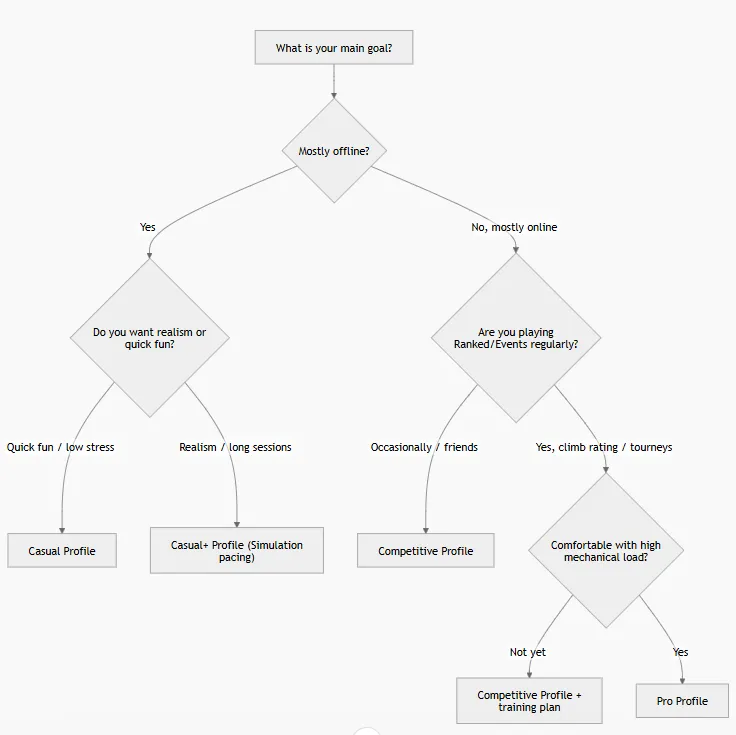
Decision flowchart for choosing your profile
Comparison table: Casual vs Competitive vs Pro
Category
Casual (fun + learning)
Competitive (Ranked-ready)
Pro (high rating / tourney-ready)
Gameplay Style baseline
Casual (tutorial prompts + forgiving feel)
Competitive (more consistent reward for good input)
Competitive with minimal assists; practice-driven tuning
Primary difficulty target
Hitting/Pitching: Dynamic → Rookie/Veteran
All-Star → Hall of Fame depending on mode/rating
Hall of Fame / Legend (and higher where applicable)
Hitting view
Strike Zone (learn ball flight)
Strike Zone; swap to Strike Zone High vs tall/high-release pitchers
Same, with match-up-based switching
Hitting Depth of Field
On
On
On, but reassess if you notice performance anomalies post-patch
Hitting interface
Big Zone or Timing/Directional
Zone or Fixed Zone
Zone/Fixed Zone only
PCI display
On; simple PCI (center only)
On; minimal PCI clutter (center only)
On; tuned for maximum visibility
PCI Sensitivity
Start ~60–70 and adjust
Calibrate deliberately; tolerate higher for fast inside heat
Often higher; minimize overshoot via disciplined stick path
Pitching interface
Classic or Pure Analog (low friction)
Pinpoint (best ceiling); Pure Analog as fallback
Pinpoint only
Throwing interface
Buttons or Button Accuracy (if you want skill expression)
Button Accuracy
Button Accuracy + throw canceling awareness
Baserunning control
Assisted acceptable; manual for steals/extra bases
Manual (avoid auto mistakes)
Manual, fully intentional leads/jumps
Online mitigations
Prefer wired when possible
Wired Ethernet + no background downloads
Same + crossplay strategy + strict setup discipline
Gameplay settings deep dive
Difficulty and gameplay style recommendations
Recommended settings (value → rationale → trade-offs → best for → how to change)
Gameplay Style (Casual vs Competitive vs Simulation)
Recommended values
Beginners: Casual
Intermediate/Advanced: Competitive for online consistency
Offline realism: Simulation
Rationale: Operation Sports describes Casual as tutorial/forgiving, Competitive as tuned for online consistency, and Simulation as most realistic/varied.
Trade-offs: Casual can build habits that don't translate; Simulation variance can feel “unfair” if you want strict input reward; Competitive is less forgiving.
Beginner: Dynamic (lets the game adapt) or Beginner/Rookie
Intermediate: Veteran/All-Star
Advanced: Hall of Fame
Pro: Legend (and higher tiers where available)
Rationale: Operation Sports notes lower difficulties slow pitch speeds and expand the margin for error, while higher levels punish slow PCI and timing mistakes.
Trade-offs: Staying too low too long can stall pitch-recognition growth; jumping too high too fast can mask whether your settings are good because you'll be overwhelmed.
Best for: Dynamic for onboarding; Veteran/All-Star for “baseball fun” with challenge; HOF/Legend for competitive readiness.
How to change: Settings → General → Difficulty; tune Hitting, Pitching, Fielding individually.
Batting settings
Hitting Interface
Recommended values
Casual: Big Zone (intermediate) or Timing / Directional (simplify)
Competitive/Pro: Zone or Fixed Zone
Rationale
Official manual: Zone is “advanced” and allows precise PCI placement; Fixed Zone keeps PCI from snapping back to center; Big Zone divides the zone into nine sections and explicitly sacrifices Perfect/Perfect outcomes for a more casual approach.
Trade-offs
Timing/Directional/Big Zone reduce mechanical load but cap precision/ceiling (Big Zone explicitly trades away Perfect/Perfect).
Zone/Fixed Zone demand practice and expose controller inconsistency, but scale best into high difficulty.
Best for
Big Zone: intermediate player wanting “zone concepts” without full PCI stress.
Fixed Zone: zone hitters who dislike PCI recentering behavior.
Zone: anyone investing in competitive ceiling.
How to change (in-game)
From the main menu Settings (gear icon), go to Control/Controls → Batting → Hitting Interface.
Swing Input (Buttons vs analog variants)
Recommended value: Buttons for Competitive/Pro; Buttons or any comfortable option for Casual.
Rationale: Operation Sports' hitting settings guide explicitly recommends Swing Input: Buttons, and the official manual supports multiple input styles (buttons/analog flick/analog stride), implying usability trade-offs rather than a single mandatory method.
Trade-offs: Analog stride can feel immersive but adds rhythm complexity; buttons reduce variability and are easier to standardize across sessions.
Best for: Buttons for ranked consistency; analog styles for immersion or accessibility preferences.
How to change: Settings → Controls → Batting → Swing Input.
Competitive/Pro: PCI On, minimal clutter; choose high-contrast color + moderate opacity (enough to see, not enough to distract).
Rationale: Operation Sports lists PCI configuration options and recommends minimizing unnecessary PCI elements early.
Trade-offs: Too much PCI clutter can obscure the ball; too little can reduce reference clarity in high-speed at-bats.
Best for: Everyone using Zone/Fixed Zone inevitably benefits from at least a visible center reference.
How to change: Settings → Controls → Batting → PCI options (Center/Inner/Outer/Opacity).
PCI Sensitivity (new in MLBTS 26)
Recommended values
Beginner start point: ~60–70 (then adjust slowly)
Competitive: raise until you can consistently cover inside velocity without “late stick,” but not so high you overshoot.
Pro: often higher, but only if your stick discipline is stable.
Rationale: Operation Sports defines PCI sensitivity as PCI movement speed and explains high sensitivity helps cover inside heat while low sensitivity prevents overshoot.
Trade-offs: High sensitivity amplifies stick noise (micro-jitters, fatigue); low sensitivity creates the feeling of being “stuck” on fastballs.
Best for: Zone/Fixed Zone hitters at all levels; the setting exists specifically “for zone hitters.”
How to change: Settings → Gameplay or Controls → Batting → PCI Sensitivity (under Zone interface).
PCI Anchor (On vs Off) — resolve conflicting guidance
Recommended values
Casual: On (predictable start point)
Competitive/Pro: usually Off (full movement freedom), but only if you have a stable pre-pitch routine.
Rationale: One Operation Sports guide recommends PCI Anchor: On to keep PCI starting centered and reduce confusion; another recommends Off as a “meta” pairing with PCI sensitivity to maximize freedom.
Trade-offs: Anchor On reduces cognitive load but can encourage “always start center” habits; Anchor Off enables custom pre-pitch PCI placement but increases execution burden.
How to change: Settings → Controls → Batting → PCI Anchor.
Guess Pitch / assists
Recommended value: Off for Competitive/Pro; optional for Casual learning only.
Rationale: Operation Sports explicitly recommends Guess Pitch Off and frames it as a crutch that can harm longer-term development.
Trade-offs: Turning it on can reduce early frustration; turning it off accelerates real pitch recognition.
How to change: Settings → Controls → Batting → Guess Pitch.
Pitching settings
Pitching Interface (Pinpoint vs Pure Analog vs Classic vs Meter vs Pulse)
Recommended values
Beginner: Classic (fast onboarding) or Pure Analog (simple but skillful)
Intermediate: Pure Analog or begin Pinpoint training
Advanced/Pro: Pinpoint as primary
Rationale
Official manual documents all interfaces and basic operation.
Operation Sports argues Pinpoint is “better” because it improves control over velocity and release feedback, while still acknowledging Pure Analog as competitive and easier to master for many.
Trade-offs: Pinpoint is higher workload and demands timing + gesture accuracy; Classic reduces mechanical error but also reduces mastery ceiling.
Best for: Pinpoint for Ranked; Pure Analog for “good enough” online without deep lab work; Classic for new or fatigue sessions.
How to change: Main menu → Settings (gear icon) → Controls → Pitching Interface.
Bear Down (new mechanic, not just a “setting”)
Recommended value: Use intentionally in high leverage (2 strikes, runners on, key matchup), not on routine pitches.
Rationale: Official documentation describes Bear Down as a “max effort” tool that can help in critical moments but wears your pitcher quickly if overused.
Trade-offs: More control/effort in the moment versus fatigue accumulation and potential downstream performance cost.
How to use/change: It's executed in-game via the Bear Down input (not a menu toggle) as described in pitching controls.
Pitch selection UI (PitchCom on/off)
Recommended value
Casual: On if it helps reduce cognitive load.
Competitive/Pro: Often Off to reduce clutter and keep attention on tunneling/sequencing; but personal preference varies.
Rationale: Community guides treat PitchCom as a configurable option in the Controls settings, and competitive-oriented settings roundups often disable it for focus.
Trade-offs: More UI guidance vs cleaner screen.
How to change: Settings → Controls tab → PitchCom (location referenced in community briefings).
Pitch marker / pitch trail visualization
Recommended value: Pitch Trail (especially while learning a pitcher's movement profile).
Rationale: Settings roundups explicitly recommend Pitch Trail to visualize movement and improve reads for both offense and defense.
Trade-offs: More visual aids can reduce “pure read” training, but improves consistency and learning speed.
How to change: Settings → Pitching section → Pitch Marker / Ball Marker (label varies by UI).
Fielding settings
Throwing Interface: Button Accuracy vs Buttons vs Analog
Recommended values
Casual: Buttons (lower workload) or Button Accuracy if you want skill expression.
Competitive/Pro: Button Accuracy
Rationale: Official manual explains Button Accuracy windows scale with throw distance and fielder attributes; community guides highlight precision/fast release benefits when executed well.
Trade-offs: Button Accuracy demands timing; Buttons reduces complexity but reduces the “earned” advantage on tight plays.
How to change: Settings → Controls → Fielding/Throwing → Throwing Interface.
Auto Fielding / Auto Throwing
Recommended values
Casual: Auto Fielding ON (optional), Auto Throwing ON (optional)
Competitive/Pro: Auto Fielding OFF, Auto Throwing OFF
Rationale: Competitive settings generally aim to reduce automation so outcomes map more directly to player inputs; the game's own accessibility framing emphasizes configurable assists—suggesting assists are tools, not defaults.
Trade-offs: Automation lowers stress but increases “why did my fielder do that?” situations; manual control raises mental load but increases agency.
How to change: Settings → Gameplay settings → Fielding → Auto Fielding / Auto Throwing.
Base running settings
Baserunning Interface (Analog vs Buttons)
Recommended values
Casual: Buttons (clear “send runner” mapping)
Competitive/Pro: whichever you can execute fastest under pressure; many prefer Analog for selecting individual runners quickly (but this is personal).
Rationale: Official manual defines how analog selection and button-based targeting work (individual runner selection, advance/return all, steals/jumps).
Trade-offs: Analog can be faster but increases accidental input risk; buttons are explicit but can be slower in complex situations.
How to change: Settings → Controls → Baserunning Interface.
Auto baserunning / lead-steal assists
Recommended values
Casual: Auto baserunning acceptable, but manually control steals and extra bases when it matters.
Rationale: Community forum reports describe “freezes” and unwanted steals under auto baserunning in some cases, reinforcing that automation can produce costly outcomes.
Trade-offs: Manual control reduces “bug/automation tax” but increases attention burden (especially while also hitting).
How to change: Typically within Settings → Gameplay → Baserunning (interface-level change is documented via tutorial videos/guides).
Recommended value: treat PCI Sensitivity as a calibration slider, not a “copy pro settings once” toggle; start mid-high and iterate in small steps.
Rationale: Operation Sports explicitly recommends iterative adjustment and practicing against high velocity to validate movement speed.
Trade-offs: Over-tuning sensitivity without practice can worsen performance and create “random feeling” swings.
How to change: Settings → Gameplay or Controls → Batting → PCI Sensitivity.
Dead zones (stick drift mitigation)
Current best practice: Treat dead-zone issues as a hardware/platform calibration problem first, then tune PCI Sensitivity to match your controller's “true feel.” This is especially important because player reports and guides explicitly tie PCI feel to controller differences.
Camera and audio-visual settings for competitive clarity and performance
Camera settings: type, “zoom/angle,” and practical FOV interpretation
MLBTS camera configuration is primarily implemented via named camera presets (e.g., “Strike Zone,” “Strike Zone High”) rather than a documented numeric FOV slider; practically, these presets function as bundled zoom/angle/FOV packages.
Hitting View
Recommended values:
Primary: Strike Zone
Match-up alternate: Strike Zone High (notably vs tall/high-release pitchers)
Rationale: Operation Sports states Strike Zone provides the clearest view and centers your camera around pitch path; Strike Zone High is acceptable for certain release point matchups.
Trade-offs: Strike Zone reduces “broadcast realism” and peripheral context, but maximizes pitch recognition—an explicit competitive priority.
How to change: Settings → Camera tab → Offense → Hitting View.
Hitting Depth of Field
Recommended value: On
Rationale: Operation Sports describes it as a new MLBTS 26 feature that blurs background distractions; patch notes reproduced by Operation Sports later referenced Depth of Field adjustments intended to improve framerates.
Trade-offs: While generally helpful, any post-launch visual effect can evolve with patches—so if it ever causes discomfort or perceived performance issues, re-evaluate.
How to change: Settings → Camera tab → Offense → Hitting Depth of Field.
Rationale: Operation Sports recommends Dynamic for tracking the ball in play; other settings are preference-based.
Trade-offs: Dynamic can be less “cinematic,” but improves functional tracking.
How to change: Settings → Camera tab → Offense → In-Play View.
Fielding camera
Recommended value: High (wider overhead utility)
Rationale: Settings roundups describe “High” as improving tracking on flyballs/liners.
Trade-offs: More tactical view, less immersion.
How to change: Settings → Camera tab → Defense → Fielding camera (label may vary).
Audio/visual settings for focus and “performance feel”
Presentation pace: Quick CPU Pitching + Fast Play-style presentation
Recommended values
Offline grinding / long sessions: Quick CPU Pitching: On
Optional: “Fast Play” presentation concepts are commonly recommended to reduce downtime.
Rationale: Guides describe Quick CPU Pitching as reducing time between CPU pitches and speeding sessions.
Trade-offs: Faster pacing can be mentally tiring and may reduce your ability to reset between pitches; for competitive readiness, it can also help simulate higher tempo.
How to change: Main menu → Settings → Gameplay settings → Quick CPU Pitching.
Audio mix (commentary/crowd)
Recommended values: Lower or disable commentary/crowd if they distract you; keep gameplay SFX audible for pitch/swing feedback.
Rationale: Settings roundups explicitly recommend reducing commentary/crowd for focus during grinding.
Trade-offs: Less atmosphere; more focus.
How to change: Settings → Audio (volume sliders).
Frame rate / resolution realities on PS5
MLBTS 26 does not present an in-game “PC-style graphics menu” in the official console documentation; performance vs resolution mode is often handled as a system-level PS5 preset rather than an MLBTS menu.
Recommended value for competitive responsiveness: set PS5's game preset toward Performance Mode (system setting) when available on your display.
Trade-offs: Performance mode can reduce visual fidelity (e.g., anti-aliasing/shadows) depending on title/system behavior.
Online play optimization and accessibility
Online settings: latency, matchmaking, and input-delay mitigation
Cross-play
What's officially supported: Cross-play is supported across the supported consoles.
Competitive recommendation: If you experience unstable matchmaking or freeze-off frequency, some community guidance suggests disabling crossplay may reduce “bad matchups,” though it is not a guaranteed fix and availability/locking can vary by mode or UI state.
How to change: The location is commonly described as a profile/settings toggle (UI can vary).
Trade-offs: Disabling crossplay can increase queue times and reduce opponent variety.
Disconnects and matchmaking issues (current-state realism)
Developers publicly acknowledged disconnect issues and asked players to keep reporting; community reporting also shows matchmaking disruptions close to Opening Day and during launch window.
Mitigation settings/behaviors (practical, high ROI):
Use wired Ethernet when feasible.
Avoid Wi‑Fi for Ranked if you're serious about record integrity.
Turn off background downloads/streaming on your console network while playing Ranked.
Freeze-offs
Definition: Freeze-offs are online matches that halt until one player disconnects; Operation Sports emphasizes you generally can't “fix” them locally if root cause is the game's connection/matchmaking behavior.
Mitigation: Connection hygiene (wired, stable network) and possibly crossplay filtering are the primary practical mitigations described.
Input delay: what you can and cannot control
Some input-delay complaints appear systemic (online conditions), while others are setup-related; at minimum, the best-supported mitigations are connection stability and avoiding bandwidth contention.
For online “perfect umpire” environments, remember that the game may lock certain rules/behaviors in online modes (e.g., “perfect” umpire setting in Diamond Dynasty/online), so your optimization should assume consistency rather than relying on generous calls.
Platform notes: PS5 and PC
PS5
MLBTS 26 is officially supported on PS5; online multiplayer requires the relevant paid online service per platform context.
PS5 “performance vs resolution” behavior is often driven by PS5 system presets rather than a dedicated in-game toggle in MLBTS menus (as discussed in community threads).
PC
There is no native PC release at launch; multiple sources summarize this as confirmed by the lack of PC marketplace listings and the stated console platforms.
Practical implication: “best PC settings” mostly means best streaming/remote-play setup if you're playing indirectly (network stability, display latency, controller choice), not in-game resolution/FPS sliders.
Accessibility options
PlayStation's listing for MLBTS 26 includes a fairly broad accessibility feature set. The following are the most relevant for “optimal settings” (value → rationale → trade-offs → best for → how to change):
Audio cue alternatives / vibration substitution
Recommended value: Enable if you rely on non-audio feedback; disable vibration if it harms fine motor control.
Rationale: PlayStation documents that audio info can be communicated visually or through controller vibration, and the game is playable without vibration/adaptive trigger effects.
How to change: Settings → Accessibility / Controller (menu naming may vary by platform UI).
Volume controls + Mono audio
Recommended value: Use volume sliders to prioritize gameplay SFX; enable mono if needed for hearing accessibility.
How to change: Settings → Audio (for volumes) and Accessibility/Audio for mono where available.
Captions
Recommended value: Enable gameplay-relevant captions if they help interpret important sounds.
Note: PlayStation's listing notes “captions (basic)” for important sounds, and that the game is playable without subtitles due to lacking spoken dialog.
Practice mode / tutorial reminders
Recommended value: Use Practice and Options Explorer to validate settings changes under controlled reps (velocity, pitch mix) before committing online.