To check your frame rate (FPS) in Aion 2, you will need to rely on an external software overlay or your operating system's built-in tools. Because the game is built on Unreal Engine 5 and heavily optimized for modern hardware, tracking your frames is essential for adjusting visual settings. However, it does not feature a native, built-in FPS counter toggle in the standard game settings.
Depending on how you launch the game or what hardware you use, here are the most effective ways to display your performance metrics.
1. The Steam Overlay
If you are playing the PC-native global version of Aion 2 directly through Steam, or if you added the executable file as a non-Steam game to your library, Valve's built-in overlay is the cleanest, lowest-impact option available.
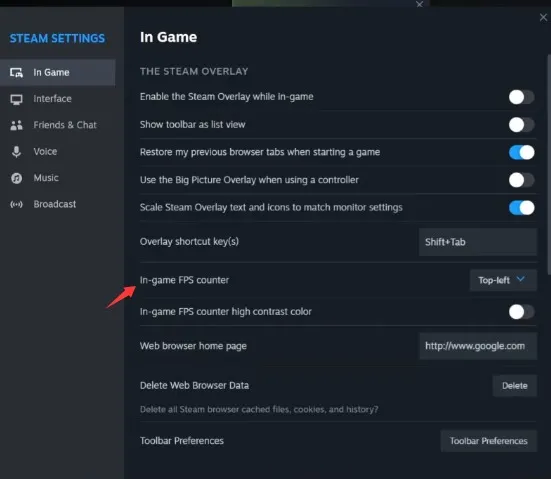
- Open Steam and click on Steam in the top-left corner, then select Settings.
- In the settings menu, navigate to the In-Game tab.
- Look for the In-game FPS counter dropdown menu.
- Choose your preferred screen corner (for example, Top-left).
- To make the small font easier to read against the colorful backgrounds of Atreia, toggle the High-contrast color option to turn the text green.
2. Windows Xbox Game Bar
If you prefer not to use third-party applications, Windows 10 and 11 feature a built-in performance widget that works seamlessly with Aion 2.
- Launch the game and press the Windows Key + G to open the Game Bar overlay.
- Locate the Performance widget window on your screen.
- Click on the FPS tab within that widget. (Note: If this is your first time using it, you may need to click "Request Access" and restart your PC).
- Click the Pin icon in the top-right corner of the Performance widget. This ensures the frame rate counter stays locked on your screen even after you close the main Game Bar menu.
3. GPU Software Overlays
Both NVIDIA and AMD feature heavily optimized diagnostic trackers inside their graphics card control suites. These are highly recommended because they easily display how advanced features like DLSS or frame generation are impacting your performance.
For NVIDIA Users (NVIDIA App / GeForce Experience)
- Press Alt + Z while the game is running to bring up the overlay.
- Click on the Settings gear icon and select HUD Layout.
- Click on Performance, choose FPS, and select the corner of the screen where you want it displayed.
For AMD Users (AMD Software: Adrenalin Edition)
- Press Alt + R to open the Adrenalin software interface.
- Navigate to the Performance tab located at the top of the window.
- Under the Metrics sub-tab, locate the FPS tracking option and toggle it to enabled. You can also choose to overlay this metric directly onto your game screen.
Keeping your frame rate smooth isn't just about making the world of Atreia look stunning—it directly impacts your gameplay during intense combat. In a highly competitive MMORPG where a single second of lag can mean the difference between securing a rare drop or losing a fight, maximizing your hardware efficiency ensures you never miss a beat. By tracking your FPS through these overlays, you can fine-tune your settings for peak performance, giving you the competitive edge needed to efficiently farm resources, dominate PvP battles, and maximize your earnings of Aion 2 Kinah.
4. Advanced Hardware Monitoring (MSI Afterburner)
If you are experiencing micro-stutters during massive large-scale Abyss faction PvP battles or 200-player raids, a simple FPS counter might not give you enough data. For deep troubleshooting, MSI Afterburner paired with RivaTuner Statistics Server (RTSS) is the gold standard.
- Download and install MSI Afterburner (ensure you check the box to include RivaTuner Statistics Server during installation).
- Open Afterburner, click the gear icon to open the Settings, and head to the Monitoring tab.
- Scroll through the active hardware list, click on Framerate, and check the box below it that says Show in On-Screen Display.
- You can also check the boxes for Framerate Min and Framerate 1% Low to track sudden performance dips during intense combat.
- Keep both applications running quietly in the background when you launch Aion 2.