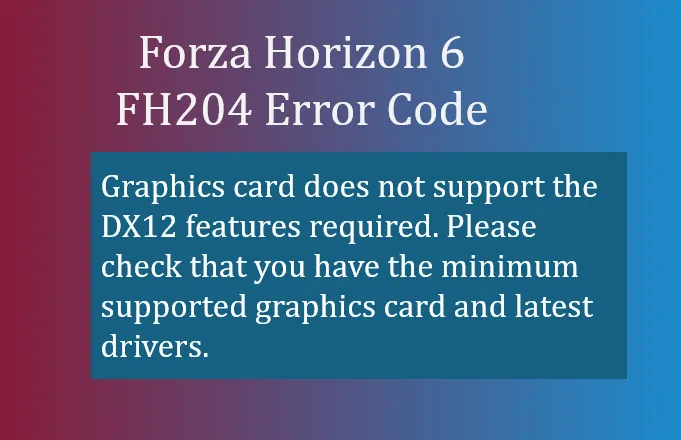
If you're trying to launch Forza Horizon 6 and encounter the FH204 error code, it usually comes with the message:
- Graphics card does not support the DX12 features required. Please check that you have the minimum supported graphics card and latest drivers.
This error signals that the game has detected a graphics processing unit (GPU) that either doesn't meet the minimum DirectX 12 requirements or has driver issues preventing proper initialization. Essentially, your GPU isn't communicating with the game correctly, and FH6 can't start until this is resolved.
Why FH204 Happens
There are a few common reasons why this error pops up:
- Hardware Limitations – Older or low-end GPUs (especially integrated graphics chips) may not support the necessary DirectX 12 feature levels that FH6 requires.
- Driver Incompatibilities – Sometimes the installed graphics drivers have bugs, are outdated, or conflict with Windows updates, triggering false FH204 warnings.
- Wrong Active GPU – On laptops or multi-GPU setups, the system may try to run the game using integrated graphics instead of your dedicated Nvidia or AMD card, which lacks sufficient power for FH6.
How to Fix FH204
Here's a step-by-step approach to resolving this issue:
1. Update or Roll Back Graphics Drivers
If you're using a modern Nvidia RTX or AMD RX card but still see FH204, your driver version may be the problem.
- Nvidia: Certain driver releases (e.g., 581.xx series) combined with specific Windows 11 updates can falsely trigger FH204.
- Fix: Roll back to a stable previous release (e.g., 577.00 series) or download the latest hotfix from the Nvidia GeForce website or AMD Drivers page.
- Ensure your Windows system is fully updated.
2. Force FH6 to Use the Dedicated GPU
On systems with integrated graphics:
- Open Windows Settings → System → Display → Graphics settings.
- Locate Forza Horizon 6 in the list (or browse to its executable).
- Click the game → Options → choose High Performance.
- Save the changes and restart the game.
This ensures FH6 runs on your full-powered GPU rather than a weak integrated chip.
3. Bypass the Warning (Optional)
Some users report that FH204 can appear even when their GPU is compatible.
- Click Ignore and Continue if the prompt is available.
- The game might launch at a lower resolution (like 1080p), but you can adjust settings in-game once it loads.
4. Confirm Minimum Hardware Requirements
If your GPU is genuinely outdated, software fixes won't help. Make sure your system meets the following:
- DirectX 12 support (Feature Level 12_0 or higher)
- At least 4GB of dedicated VRAM
- Compatible with the official FH6 PC requirements on the Forza Support Portal
If your card falls below these specs, upgrading your GPU is necessary.
By following these steps, most FH204 errors can be resolved without reinstalling the game. Updating drivers, forcing the dedicated GPU, or confirming hardware compatibility usually gets FH6 running smoothly so you can enjoy Japan's dense and vertical open world, the massive car roster, and all the multiplayer Horizon Play modes without interruptions.